


A Server Memory upgrade should begin with compatibility, not capacity. A DIMM may fit the slot and still fail during POST because the processor, BIOS, module type, rank structure, or slot layout does not support it. Even when the server boots, an incorrect configuration can reduce speed, disable channels, or leave part of the installed capacity unavailable.
How Do You Check Server Memory Compatibility Before an Upgrade?
Identify the Exact Server, Processor, and Current Memory Configuration
Record the full server model, processor generation, installed CPU count, occupied slots, and current DIMM part numbers. The processor usually contains the memory controller, so it affects supported speeds, channel count, and maximum capacity.
Note each module’s capacity, speed, rank, and organization for a reliable server RAM compatibility check. The Huaying Hengtong server memory module range includes DDR4 and DDR5 options for compatible enterprise platforms.
Match the DDR Generation, DIMM Type, ECC Support, and Form Factor
DDR4 and DDR5 are physically and electrically different and cannot be mixed. RDIMM, LRDIMM, and UDIMM use different buffering methods, so they are not interchangeable.
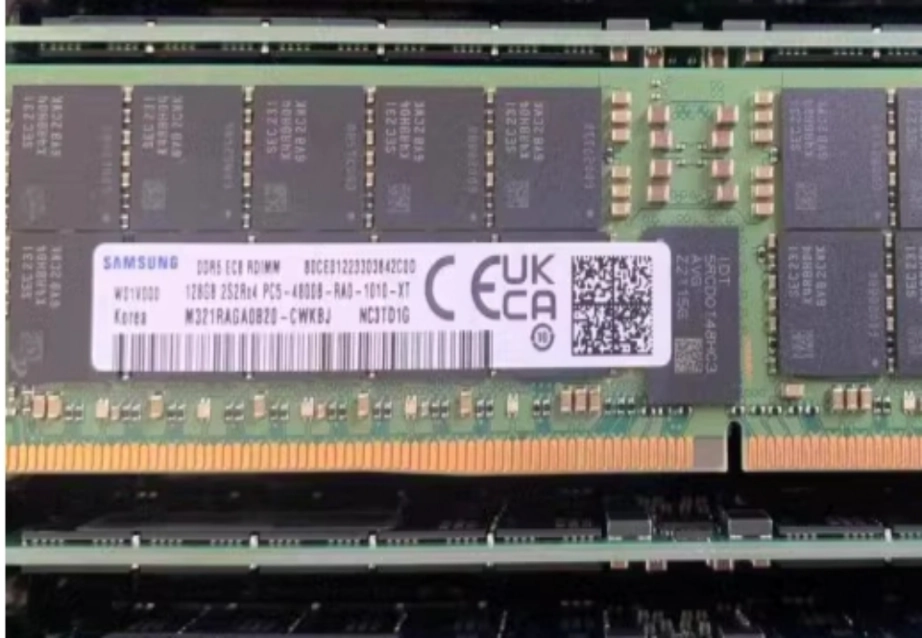
ECC support, voltage, capacity, and organization must also match. The M321RAGA0B20-CWK 128GB DDR5-4800 ECC RDIMM uses a 4Rx4 organization. A compatible server must support DDR5 RDIMM, its density, and its rank load.
Verify Maximum Capacity, Supported Speeds, BIOS Version, and Qualified Part Numbers
Check the maximum memory per socket, channel, and DIMM. A server may support a high rate at one DIMM per channel but reduce it after a second DIMM is installed.
Some systems need a BIOS update before recognizing newer capacities or higher-density DRAM. At Huaying Hengtong, we provide product sourcing, specification matching, configuration verification, and after-sales communication. We do not design the modules; we help customers compare available products with their server platforms.
How Do Speed, Rank, and DPC Affect Server Memory Performance?
Why Can Server Memory Run Below Its Advertised Speed?
The speed printed on a DIMM is its rated capability, not a guaranteed operating rate. The processor, BIOS, memory type, rank count, and DIMMs per channel determine the actual speed.
This is why Server Memory running below rated speed is not always a fault. A 4800 MT/s module may run more slowly when the processor has a lower limit or channels are heavily populated. Mixed-speed DIMMs usually use the highest common rate supported by the platform.
Our RDIMM vs LRDIMM guide explains how buffering, capacity, and platform support affect module selection.
What Do 1R, 2R, 4R, x4, and x8 Mean on a Server DIMM?
Rank is a group of DRAM chips accessed as one logical unit. Labels such as 1R, 2R, and 4R mean single-rank, dual-rank, and quad-rank. The x4 or x8 marking describes each DRAM chip’s width.
These labels do not create a simple speed ranking. Higher-rank DIMMs may provide more capacity, while lower-rank modules can place less electrical load on a channel. Selection depends on rank limits, target capacity, and channel layout.
What Is the Difference Between 1DPC and 2DPC?
1DPC and 2DPC mean one or two DIMMs per memory channel. Adding a second DIMM raises capacity and electrical load, so some servers reduce speed at 2DPC.
Two configurations with the same capacity may not deliver the same bandwidth. Channel count and channel load both matter.
What Are the Correct Server Memory Population Rules?
Populate Memory Channels Before Adding a Second DIMM per Channel
Populate primary slots across available channels before filling secondary slots, unless the manual specifies another sequence. This usually activates more channels and helps preserve bandwidth.
Slot labels differ by platform, so follow the service manual or chassis diagram rather than physical position alone.
Keep Memory Balanced Across CPUs, Controllers, and Channels
In a dual-socket server, each processor controls local memory channels. Installing most memory beside one CPU can create uneven access.
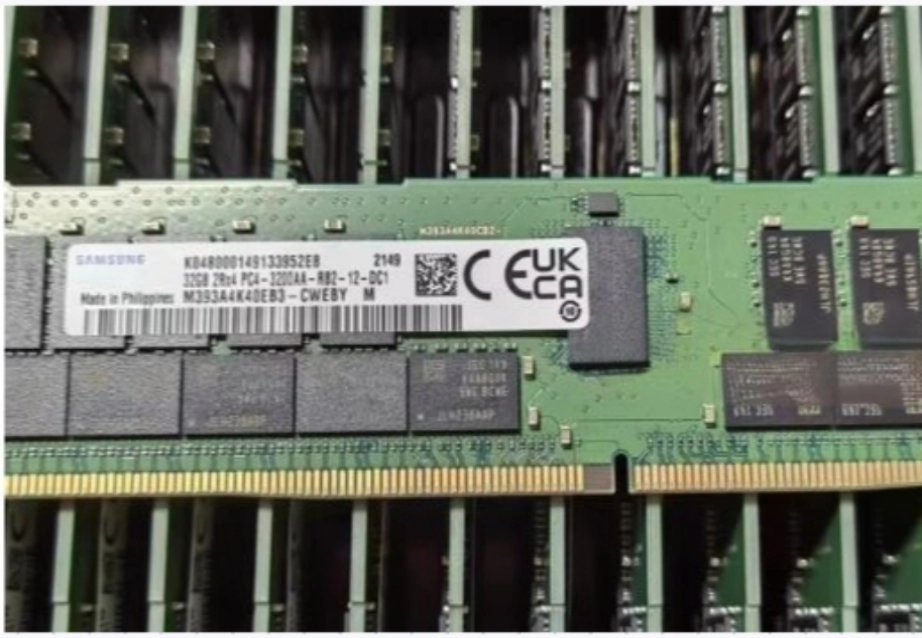
Balance capacity and rank distribution across processors and channels when required. One DDR4 option supplied by Huaying Hengtong is the M393A4K40DB3-CWE 32GB DDR4-3200 RDIMM, organized as 2Rx4 for compatible server systems.
Follow the Platform’s Slot Order and Preserve a Future Upgrade Path
Fewer high-capacity DIMMs can leave slots available for later expansion. More lower-capacity DIMMs may activate additional channels but move the system toward 2DPC sooner.
Neither approach is always better. Follow the platform’s server memory population rules and consider channel balance, rank limits, future capacity, and supported speed.
Can You Mix Different Server Memory Modules?
What Happens When You Mix Different Speeds, Capacities, or Ranks?
Mixing server memory speeds often makes all modules operate at the lowest common supported rate. Mixed capacities or ranks may work in approved layouts, but they can reduce speed, limit interleaving, or trigger warnings.
A successful boot does not prove the configuration is optimal. Check BIOS or BMC information for recognized capacity, speed, active channels, and module health.
Which Memory Types and DDR Generations Must Never Be Mixed?
Do not mix DDR4 with DDR5. RDIMM, LRDIMM, and UDIMM should not be combined unless platform documentation explicitly allows it, which is uncommon.
Incompatible combinations can cause an unsupported DIMM configuration, POST halt, restart loops, or no display. Capacity and speed alone are not enough.
Do Server Memory Brands and Part Numbers Need to Match?
Identical part numbers are safest because capacity, speed, rank, chip organization, and electrical characteristics match. Different brands may work when all specifications and platform rules align, but troubleshooting becomes harder.
Matched modules simplify documentation, replacement, and fault isolation.
Why Won’t the Server Boot After a Memory Upgrade?
Diagnose the Problem by Its Boot Symptom
No POST, Black Screen, or Repeated Beep Codes
Power off the server, disconnect power, reseat the DIMMs, and confirm the primary slots. Verify DDR generation and DIMM type.
Unsupported DIMM or Memory Population Error
Check slot order, rank limits, mixed module types, installed CPUs, and the official population table.
Memory Is Detected but Capacity or Speed Is Reduced
Check disabled channels, CPU-local slot mistakes, mixed speeds, and 2DPC downclocking.
Follow a Safe Server Memory Troubleshooting Sequence
Restore the Last Known Working Configuration
Reinstall the original DIMMs and confirm that the server boots. This separates a new memory problem from an unrelated issue.
Reseat and Test One DIMM or Channel at a Time
Install one new module in the documented first slot, test it, and add the remaining DIMMs gradually. This can reveal a faulty module, bad slot, or invalid layout.
Check BIOS, BMC Logs, Slot Order, and CPU-Local Memory
Update firmware when required and review logs for training, ECC, population, or slot errors. A server memory training failure may identify a module that cannot initialize in the requested configuration.
Is the Cause a Faulty DIMM, an Invalid Layout, or a Platform Limitation?
Test whether each DIMM works individually, each slot accepts known-good memory, and the complete layout follows platform rules. This separates defective hardware from unsupported density, excessive rank loading, and incorrect population.
FAQ
Q: How do I check Server Memory compatibility before buying?
A: Confirm the server model, processor generation, DDR type, DIMM type, ECC support, maximum capacity, rank limits, BIOS version, and official slot table.
Q: Can faster Server Memory work in a slower server?
A: It may run at a lower supported rate, but DDR generation, DIMM type, capacity, rank, and platform support must still match.
Q: Can I mix different capacities of Server Memory?
A: Some servers allow mixed capacities in specific layouts. Matched modules are generally easier to validate and troubleshoot.
Q: Why is my Server Memory running below rated speed?
A: Common causes include processor limits, 2DPC operation, higher-rank DIMMs, mixed speeds, and firmware population rules.
Q: Why does a server fail to boot after a memory upgrade?
A: Common causes include the wrong DIMM type, incorrect slot order, poor seating, unsupported rank loading, outdated firmware, a faulty module, or an invalid dual-CPU layout.